
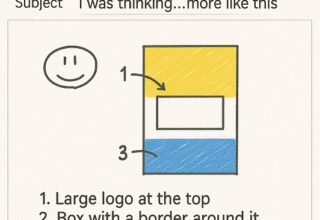
Need a quick way to communicate an idea, instruction, or point, or just send a basic sketch map? Use Outlook’s “Draw” feature to sketch your thoughts and enhance communication with visual aids, simplify complex ideas, speed up communications, and add a personal touch.
How to Use:
– Open a new email or reply.
– Click the “Draw” tab.
– Select a pen, pencil, or highlighter.
– Draw or sketch your message.
Bonus: The recipient can click on the sketch and download it, allowing them to save, edit, or share the visual content, ensuring they have a clear understanding and can reference it later.
Tips:
– Use different colours and line weights.
– Erase or delete drawings as needed.
– Combine drawings with text.
Give it a try and see how drawing in Outlook can boost your communication!
The service that we receive is of the highest standard and we are completely happy that we have made the right decision to move our business to SMT IT Services.
- Chris Addis -